Import your manuscript
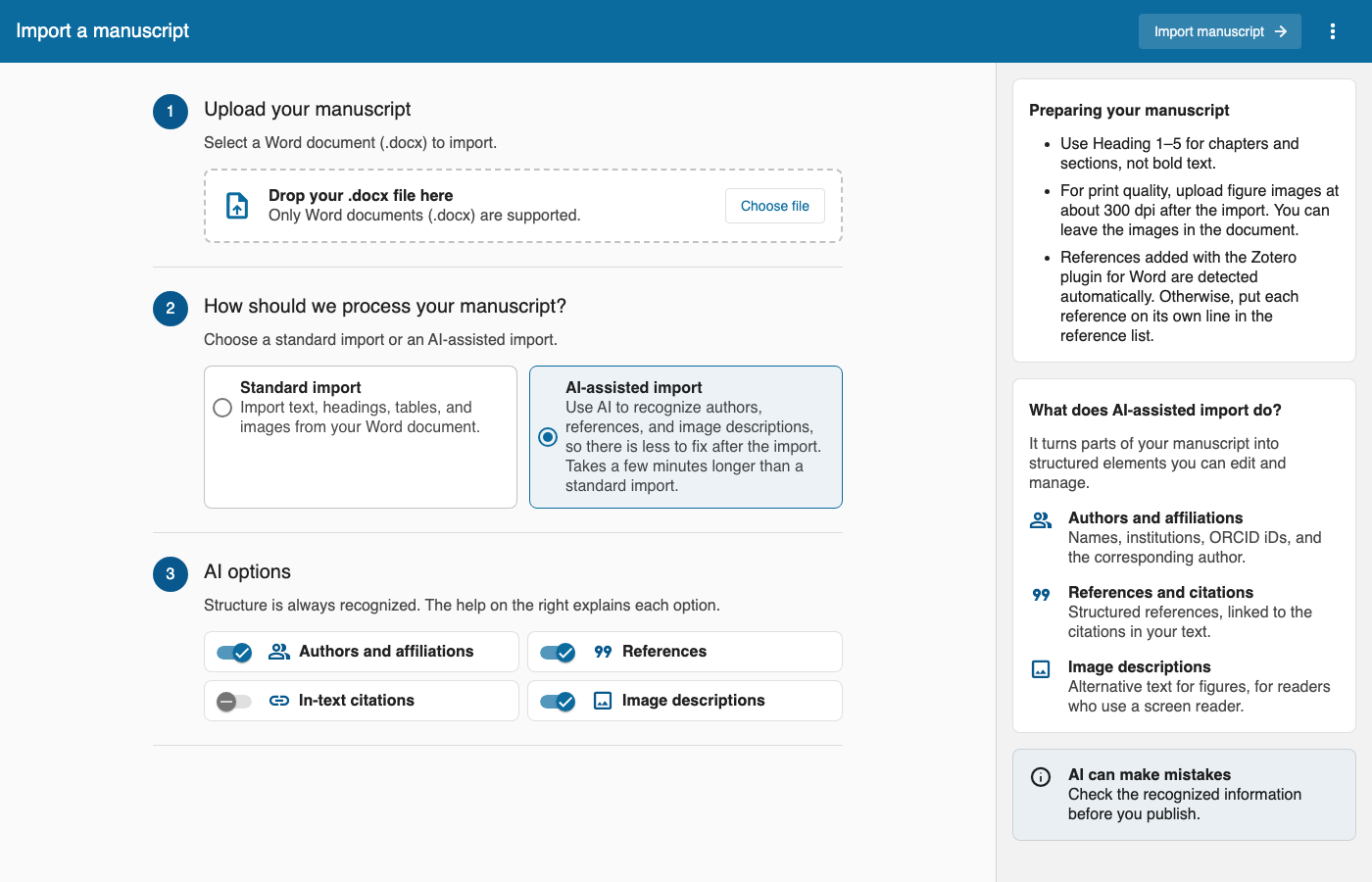
Prepare your Word file
A few things in Word make the import much better:
- Use the Word styles Heading 1 to Heading 5 for chapters and sections. Bold text that only looks like a heading may not be recognized as one.
- You can leave the images in the document. For good print quality, you can replace them with high-resolution images (about 300 dpi) after the import.
- If you added your references with the Zotero plugin for Word, they are recognized automatically. Otherwise, put each reference on its own line in the reference list.
Upload the file
- Drag your
.docxfile onto the box, or click Choose file. - Check the file name and size shown in the box.
- Click Import manuscript at the top right. The button only works once a file is chosen.
Only Word files (.docx) are accepted here. Older Word files (.doc), PDFs and Google Docs links cannot be uploaded; save them as .docx in Word or Google Docs first. For LaTeX, see the end of this page.
Standard or AI-assisted import
If AI is turned on in your app, you can choose between two kinds of import:
| Standard import | AI-assisted import | |
|---|---|---|
| What it does | Brings in text, headings, tables and images. | Also recognizes authors, references, citations and image descriptions. |
| Time | Fast. | A few minutes longer. |
| Afterwards | You add the authors yourself. References made with Zotero are still recognized. | You check what the AI found. |
If you do not see this choice, AI is not turned on for your app. You can still import, and add authors, references and image descriptions by hand in the editor. Administrators can turn AI on with the AI-assisted import setup instructions.
AI can make mistakes. Always check the authors, references and image descriptions before you publish.
AI options

When you choose the AI-assisted import, you can switch these parts on or off:
- Authors and affiliations: names, institutions, ORCID iDs (a researcher's personal identifier) and the corresponding author (the author readers should contact).
- References: each entry in your reference list is split into authors, title, journal, year and DOI.
- In-text citations: citations in your text, such as "(Smith, 2020)", are linked to the matching reference. You then choose:
- Keep the text from the document: the citation keeps the exact words you wrote.
- Format with the citation style: The app writes the citation in the style of your template.
- Image descriptions: a short text for each figure, for readers who use a screen reader.
In-text citations is off at first; the other three are on. The structure of the document (title, headings, paragraphs, captions) is always recognized.
While the import runs
You see one loading screen with a picture for each step. The panel on the right lists all steps, shows which one is running, and how long each one took.
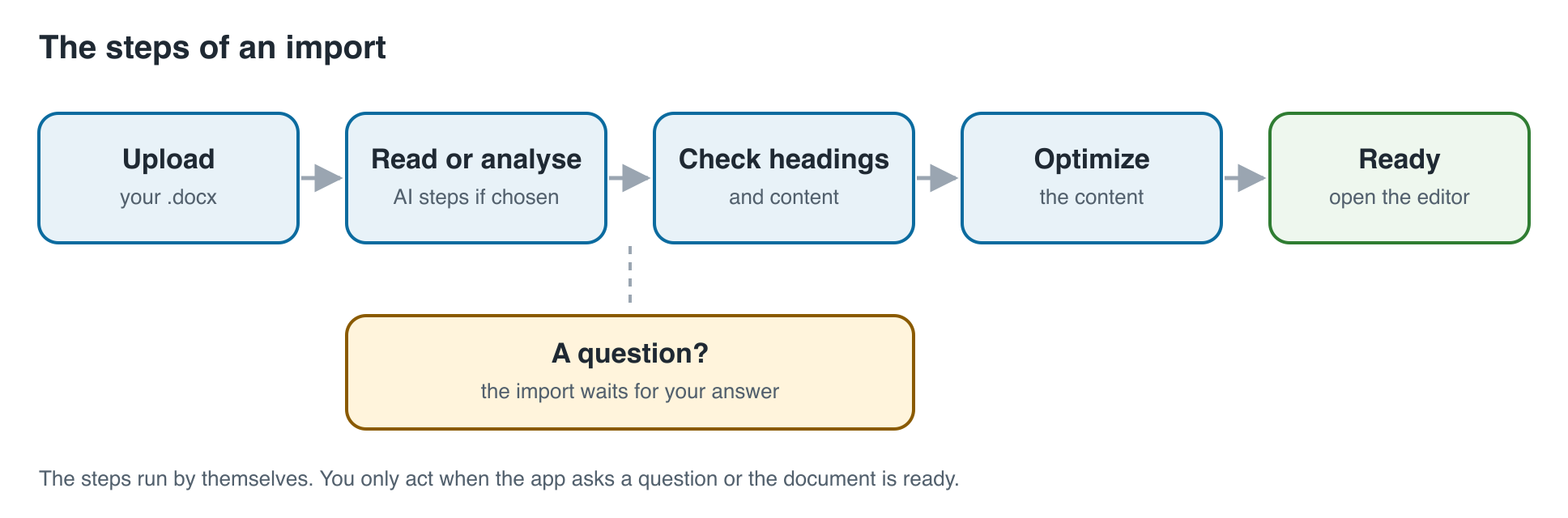
The steps run by themselves. When the server is busy, the screen first says your document is waiting in the queue; it starts on its own. You only need to act when:
- The app has a question, for example about a heading it is unsure of. The document appears with the question next to it. Answer it and the import goes on.
- "Your document is ready" appears. Click Open editor.
You can reload the page. During an AI-assisted import, the analysis keeps running and the timer counts from when it started.
Check the result
After the import, look through the document in the editor:
- Are all headings at the right level?
- Are all figures and tables there, with their captions?
- Are the authors and their affiliations right? (See Authors and references.)
- Is every reference in the reference list, and are the citations linked?
Compare the numbers with your Word file. For example, if your Word file has 10 references but the reference list shows only 3, import again with other AI options, or add the missing ones by hand.
If the import fails
The loading screen shows what went wrong and offers Upload again or, after an AI error, Try again. The screen also shows a tracking number, labelled Transaction. Send this number to your technical contact if you need help.
LaTeX files
Under ⋮ (More options) → Other formats → Import from LaTeX you can upload a LaTeX manuscript. LaTeX import is unsupported and may fail. The upload must be a .zip file with a manuscript.tex file and all images, bibliography and other files it uses. The screen suggests converting your LaTeX file to Word first and uploading that instead.
Next: Edit your document