Edit your document
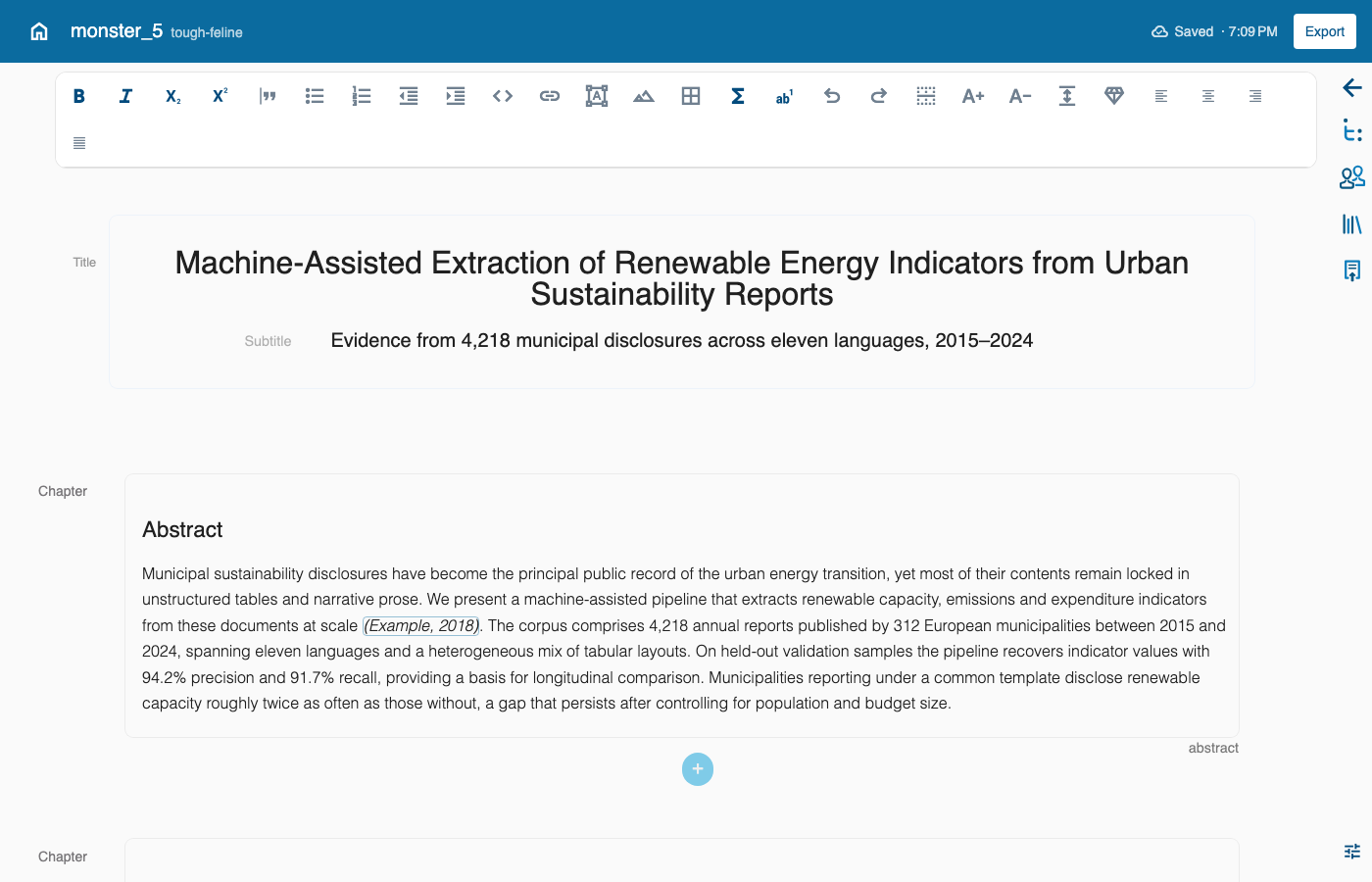
Find your way around
The editor has four areas:
- The top bar: the home button, the document name, the Save button and Export.
- The format bar: the buttons above your text (see below).
- The document: your text, which you edit directly.
- The side buttons on the right: they open the outline, the authors, the reference library and the export settings.
The top bar
- Home takes you back to the start screen of your project.
- Save changes saves your work. A small dot shows that you have unsaved changes. When everything is saved, the button says Saved and shows the time. You can also press Ctrl+S (or Cmd+S on a Mac).
- Export saves your document and opens the export options. (Some installations show an Import to … button here instead, to send the document on to another system. Save first; the button only works once everything is saved.)
The app does not save by itself. Save before you close the page.
The format bar
Buttons that do not fit what you selected are greyed out. The group names below are only to explain the buttons; they are not shown on screen.
| Group | What it does |
|---|---|
| Text | Bold, italic, and small letters below or above the line (subscript, superscript). |
| Quotes and lists | Long quotation, bullet list, numbered list, and moving a list item in or out. |
| Insert | Code, link, box, figure, table, equation and footnote. |
| Undo and redo | Take back or repeat your last change. |
| Layout | A page break after a paragraph, larger or smaller text, a spacer and a logo placeholder for the PDF, alignment (left, centre, right, or straight on both sides). |
| Tables | When you are in a table: header rows and columns, adding or removing rows and columns, merging and splitting cells. |
Headings
Next to each paragraph there is a small control that turns it into a heading (level 1 to 5) or back into a normal paragraph. Use headings for your chapters and sections, so they appear in the table of contents and the outline.
Figures and tables
- Figure: upload or replace an image, write the caption, and add an image description (alternative text) for readers who use a screen reader. If an image is only decoration, you can mark it as decorative. The app warns you when a description is missing or an image is too small for print.
- Table: create a table by choosing the number of rows and columns, or use an image as a table.
Equations
Click the equation button to open the equation editor. Type the formula in LaTeX, the commands scientists use to write formulas (examples are available in the editor), see the preview below, and choose whether it sits inside a sentence (inline) or on its own line.
Footnotes
Insert a footnote with the footnote button and write its text in the small editor that opens. Click Update to keep it.
Referring to a figure or section
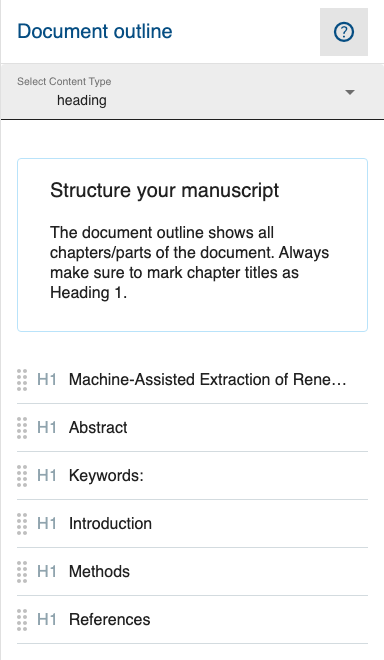
Open the Document outline with the side button. It lists your headings, so you can also check that each one has the right level. Drag a heading, figure or table from the outline into your text. This creates a reference such as "see Figure 2" that stays correct when the numbering changes.
Simple mode
Simple mode hides the format bar and most side buttons, so the screen is calmer. You can still edit and save. Save first, then click the small sliders icon at the bottom of the side buttons (Reload in simple mode). To leave, click the small ✕ (Exit simple mode). Both reload the page.
Next: Authors and references