Save, come back and get help
Saving
The app does not save by itself. Click Save changes in the top bar, or press Ctrl+S (Cmd+S on a Mac). When the button says Saved with a time, your work is stored.
If you try to leave the page with unsaved changes, your browser asks whether you want to leave. Choose to stay, then save.
Come back to a document
On the start screen, open ⋮ (More options) → Previous files.
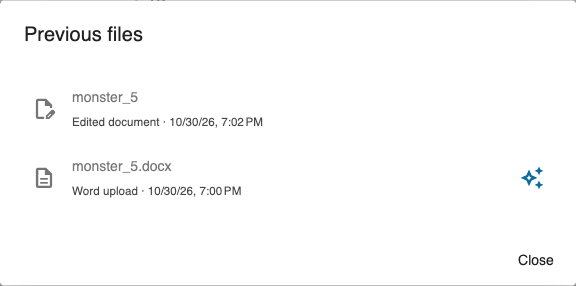
The list shows:
- Word uploads: the Word files you imported. Opening one starts its import again.
- Edited documents: the documents you worked on in the editor. Choose one of these to continue your saved work.
A sparkle icon means an AI analysis already exists for that file, so a new AI-assisted import can usually reuse it. When the list is long, type part of a name in the filter box.
If something goes wrong
- The import failed: the loading screen says what happened. Try Upload again, or Try again after an AI error.
- A button or setting is missing: your template may not offer it, or the editor may be in simple mode. Ask your technical contact.
- The export looks wrong: check the template settings, then the document itself.
When you ask for help, send the tracking number labelled Transaction shown on the loading screen, or the name of your document and what you did. This helps your technical contact find the problem quickly.
Pages for troubleshooting
Two pages are meant for troubleshooting, not for everyday work. You open them by adding /flags or /status to the end of the app's web address:
- Flags (
/flags): testing switches, such as extra information in PDFs for investigating problems, or always running the AI analysis again instead of reusing an earlier one. Only change them when your technical contact asks you to. - Status (
/status): technical checks and recent import and AI activity.
Next steps
- Journals: the Journal Workflow.
- Books: the Monograph Workflow.
- Preparing manuscripts: the Tips page.
Back to the overview.