Export and OJS
Save first
Exports are made from the saved version of your document. The Export button in the top bar saves for you. If you export from the export screen with unsaved changes, the app warns you.
Choose a format
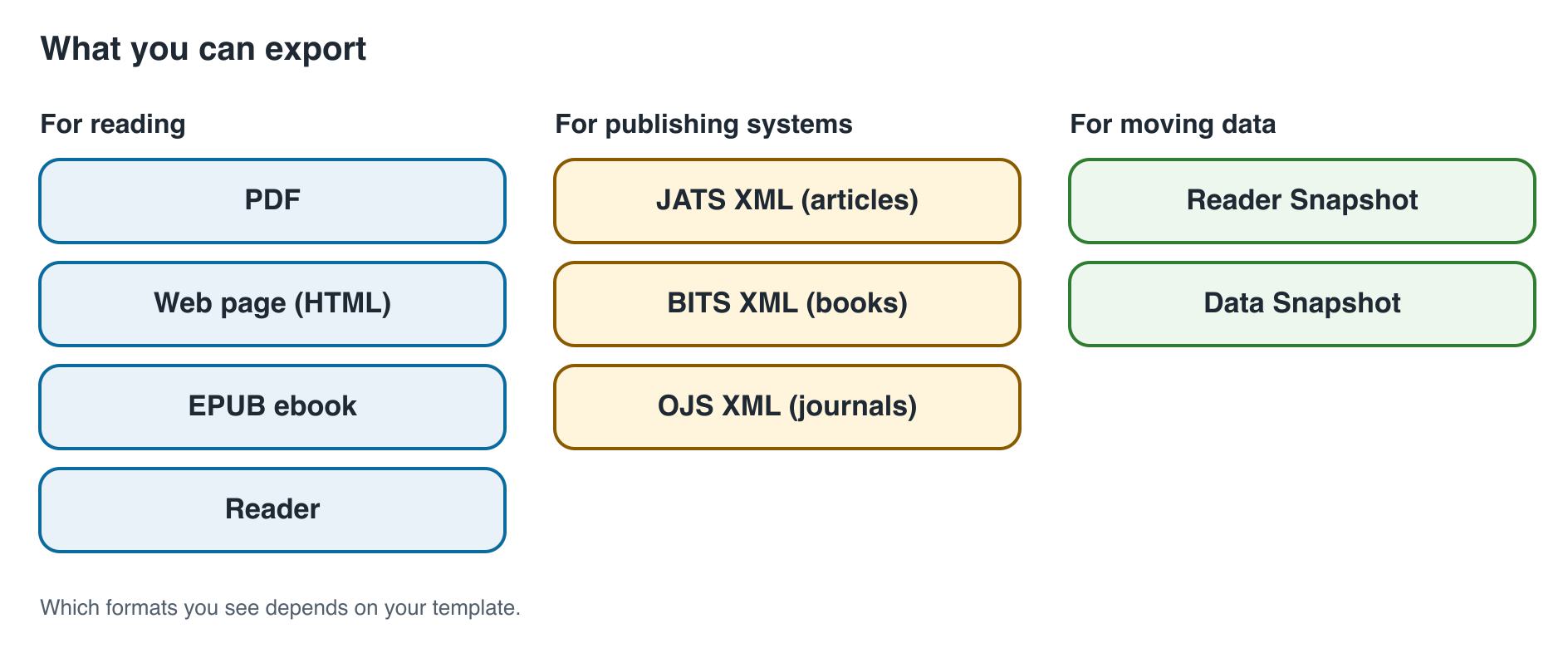
Click Download PDF for a PDF. The arrow next to it opens more formats. Which formats you see depends on your template.
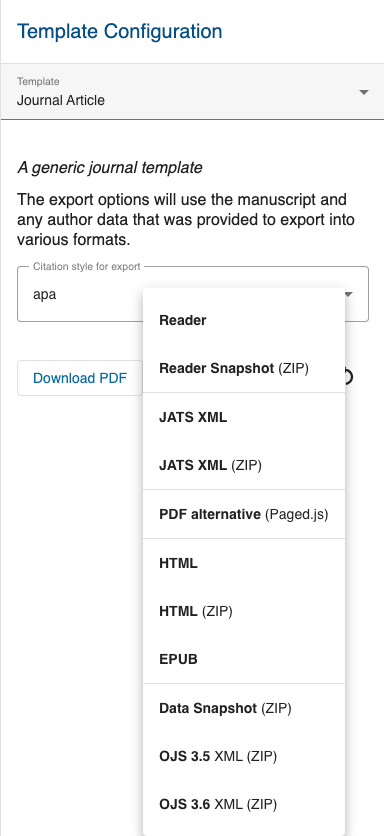
| Format | What you get | Use it for |
|---|---|---|
| A document arranged into pages. | Reading, printing, sending to others. | |
| PDF alternative | Opens a page in your browser that you print to PDF. | When you want to try a different PDF layout. |
| HTML | Your document as a web page. | Reading online. |
| HTML (ZIP) | The web page with all its images, in one package (a ZIP file). | Putting the article on a website. |
| EPUB | An ebook. | E-readers and ebook apps. |
| Reader | Your document in the app's online reading view (see below). | Reading on screen. |
| Reader Snapshot (ZIP) | A saved copy for the Reader on a website. | Your technical contact uses it to publish the Reader. |
| JATS XML / JATS XML (ZIP) | Your article in a standard format for publishing systems; the ZIP also holds the images. | Publishers and article databases. |
| BITS XML | The same idea for books. | Book publishers. |
| OJS 3.5 XML (ZIP), OJS 3.6 XML (ZIP) | Article details for Open Journal Systems, one per OJS version (see below). | Getting your article into OJS. |
| Data Snapshot (ZIP) | A saved copy of your document. | Moving a document to another installation of the app. |
Word, LaTeX and Markdown downloads are not offered here.
What the Reader is
The Reader is an online reading view of your article. It is made for reading on a screen: readers can open a table of contents and a panel with figures and tables while they read. It looks different from the PDF because it is not split into pages. You can change its colour and its light or dark look in the template settings.
Get your article into OJS
OJS (Open Journal Systems) is a system many journals use to run their journal website. The app can create a file that OJS can read in.
- Make sure your template is set up for your journal. Your technical contact does this.
- Check the article details and the authors. Every author needs a name and an e-mail address, otherwise the export stops.
- Save the document.
- On the export screen, open more formats and choose the OJS export with the same version number as your journal's OJS, for example OJS 3.5 XML (ZIP).
- Download and unzip the file. It contains
manuscript.xml. - Give this file to your journal's editor or OJS manager, who imports it into OJS.
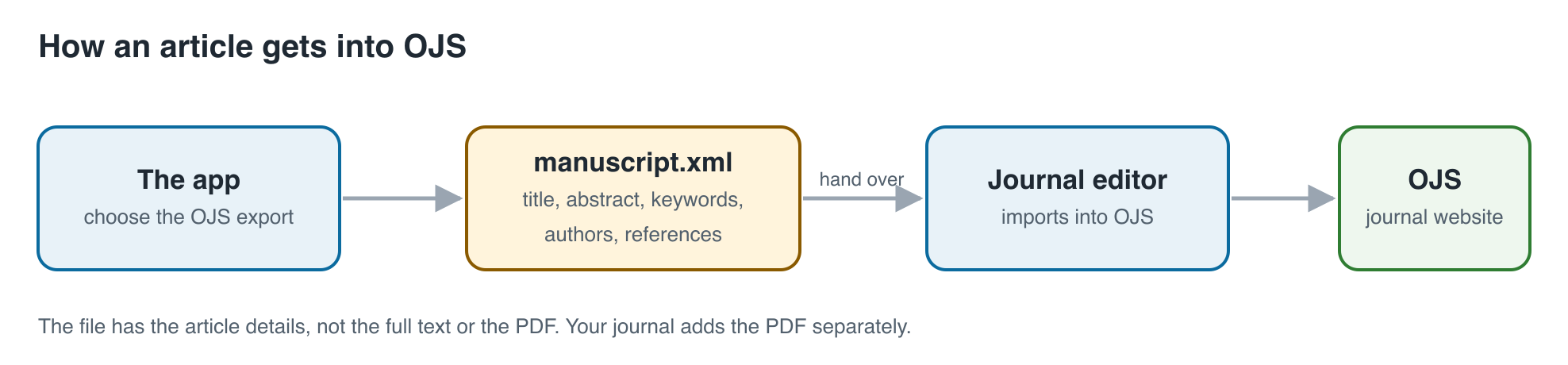
The OJS file holds the article details: title, abstract, keywords, authors and references. It does not hold the full text, the figures or the PDF. Your journal adds those separately, for example the PDF you exported from the app.
Check the exported file
Open each file you export and look through it: the title page, the headings, the figures, and the reference list. If something is missing, check your document and the template settings first. If you cannot find the cause, ask your technical contact.