Authors and references
Authors
Open Authors with the side button in the editor. Here you can:
- add an author or change their details,
- change the order of the authors by dragging them,
- add affiliations (the institutions the authors belong to) and funding,
- enter an ORCID iD: paste the 16 digits (in the form
0000-0000-0000-0000) and click Request update to fetch the author's details and affiliations from orcid.org, - mark the corresponding author (the author readers should contact), authors who contributed equally, or an author who has died,
- hide an author from the publication, or remove them.
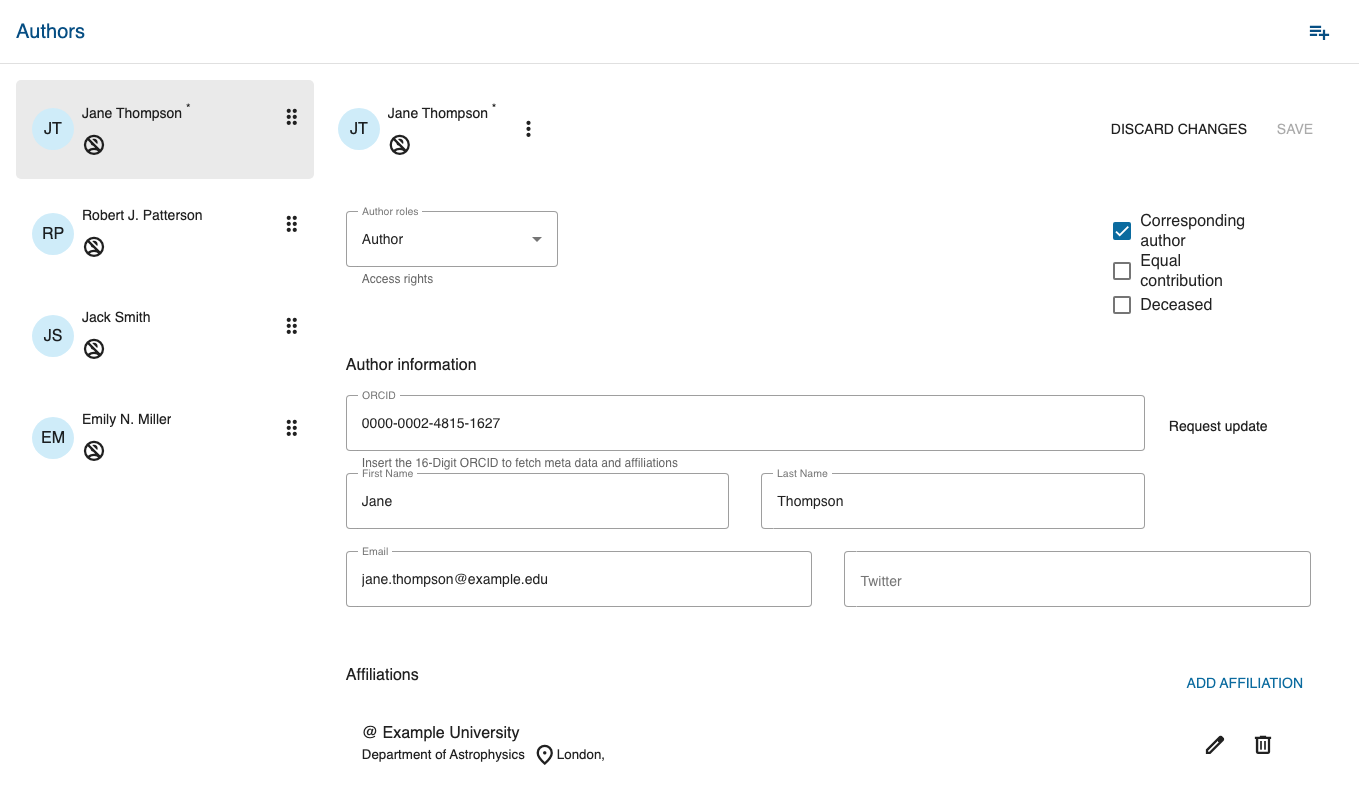
If you used the AI-assisted import, check every name, affiliation and ORCID iD here.
References, citations and the reference list
Three things belong together:
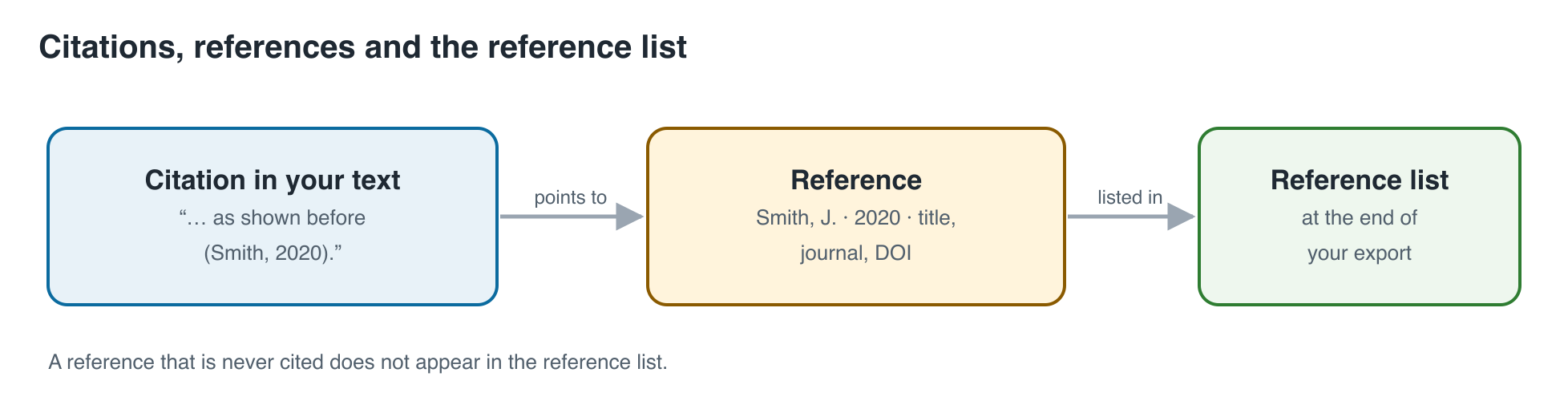
- A reference holds the details of a source: authors, title, journal, year, DOI.
- A citation is the place in your text that points to it, such as "(Smith, 2020)" or "[3]".
- The reference list (bibliography) is created from the references you cited.
The reference library
Open Reference Library with the side button. Here you can:
- upload references from a reference file ending in
.bib, for example exported from Zotero or another reference manager, - edit a reference by selecting it,
- cite a reference by dragging it into your text,
- see where a reference is cited, under "Citations in text".
References that are not cited anywhere are marked. They do not appear in the reference list of your export.
Edit a citation
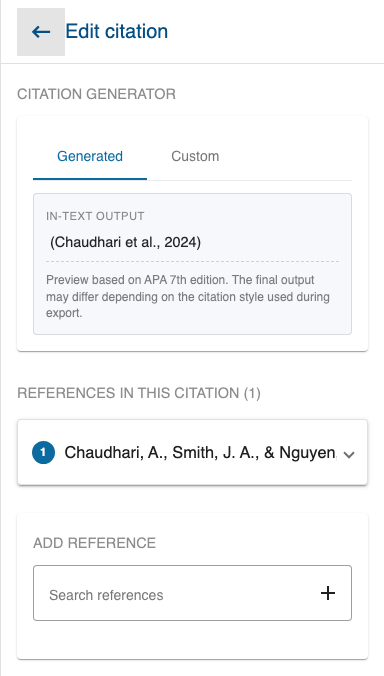
Click a citation in your text to edit it. You can:
- add or remove references from the citation,
- add a page or section, for example "p. 12",
- add text before or after,
- leave out the author name, for example when the name is already in your sentence.
Each citation is either:
- Generated: The app writes it in the citation style of your template. If you change the style, the citation changes with it.
- Custom: The app keeps exactly the words you wrote. It does not change when the style changes, but it still points to its references. Click Apply Custom text to keep your words.
The preview in the editor uses the APA style; your export uses the citation style you choose on the export screen.
The same choice exists for each entry in the reference list. Click Apply changes to keep your changes.
Check your reference list
The reference list shows missing information and warnings for each entry. Mark an entry as Reviewed once you have checked it. Plain-text entries that the app recognized as references can be turned into editable references, so they can be cited and formatted.
Next: Templates and settings