Templates and settings
What a template is
A template is the design of your publication. It decides:
- the page size, margins and fonts,
- how the title page looks: title, authors and affiliations,
- the citation style, such as APA or Vancouver,
- which exports are offered, such as PDF, Reader or OJS.
Your text stays the same whichever template you choose. Only the look changes.
Templates are usually set up by a technical contact at your publisher, university or the organisation that runs the app. You do not need to build or understand one. If you need a new template or a change that the settings below do not offer, ask your technical contact.
Need a template made for you? SciFlow Publish is a separate service that works with journals to create templates and hosts them on its own platform. It offers what you use in this app, and more.
Choose a template
- In the editor, open Export configuration with the side button. The panel that opens is called Template Configuration.
- Choose your template from the Template list. Each template has a short description.
The app comes with three example templates. Your installation may offer others:
| Template | For |
|---|---|
| Journal Article | A journal article. Offers PDF (and PDF alternative), web, ebook, Reader, JATS XML and OJS exports. |
| Report | A report with a table of contents. The same exports, without OJS. |
| Monograph template | A book, with chapters, a table of contents and lists of figures and tables. Offers PDF, web, ebook, Reader and BITS XML. |
Make simple changes in the settings
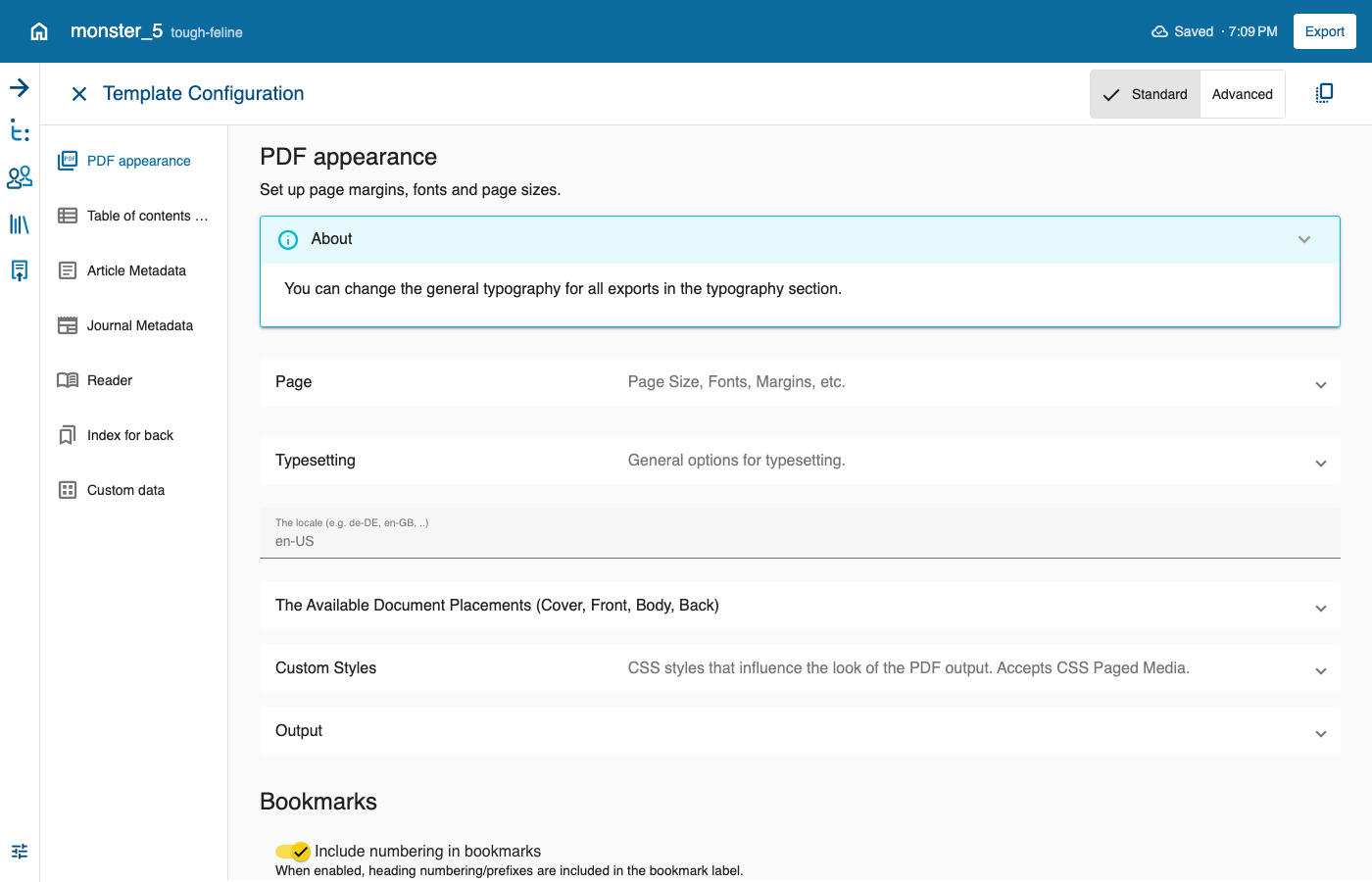
Most simple changes are made in the template settings:
- Open Export configuration.
- Choose your template.
- Click the gear (Open Template Configuration).
The settings are sorted into groups, listed on the left. Click a group to see its settings. Standard shows the common ones; Advanced shows more. Some groups only appear under Advanced. Which settings you see depends on your template.
| Group | Examples of what you can change |
|---|---|
| PDF appearance | Page size, margins, one- or two-sided printing, font and font size, line spacing, a new page for each chapter. |
| Typography | Fonts and sizes of headings, how chapters are numbered. |
| Title section | How the title, authors and affiliations look; show or hide the corresponding author. |
| Article Metadata | Article type, volume, issue, pages, DOI, a short title for the top of the pages, dates (received, accepted, published). |
| Journal Metadata | Journal name, ISSN (the journal's identification number), publisher. |
| Book Metadata | ISBN (the book's identification number), edition, publisher, series. |
| Permissions | Copyright holder, year and licence. |
| Table of contents | How deep the table of contents goes, lists of figures and tables. |
| Reader | The colour of the Reader and whether it starts in light or dark mode. |
Your changes count as unsaved changes: save the document to keep them. A reset button brings back the template's own settings.
The title and subtitle themselves are part of your document. Change them in the text, not in the settings.
Citation style and language
On the export screen you can choose the citation style, if your template offers more than one. The styles are shown as short names, such as apa or ieee. For some templates you can also choose the language of the template, which changes words such as "Figure" or "Table".
Next: Export and OJS